AllScorer brings pickleball tournament setup, scheduling, scoring, and standings together. Add event details and players, choose round settings and courts, then generate the schedule to save the event. Enter match results to update standings, and share the spectator page so players and guests can follow along.
The screenshots follow one example: eight fixed teams playing a round robin on four courts.
1. Event details
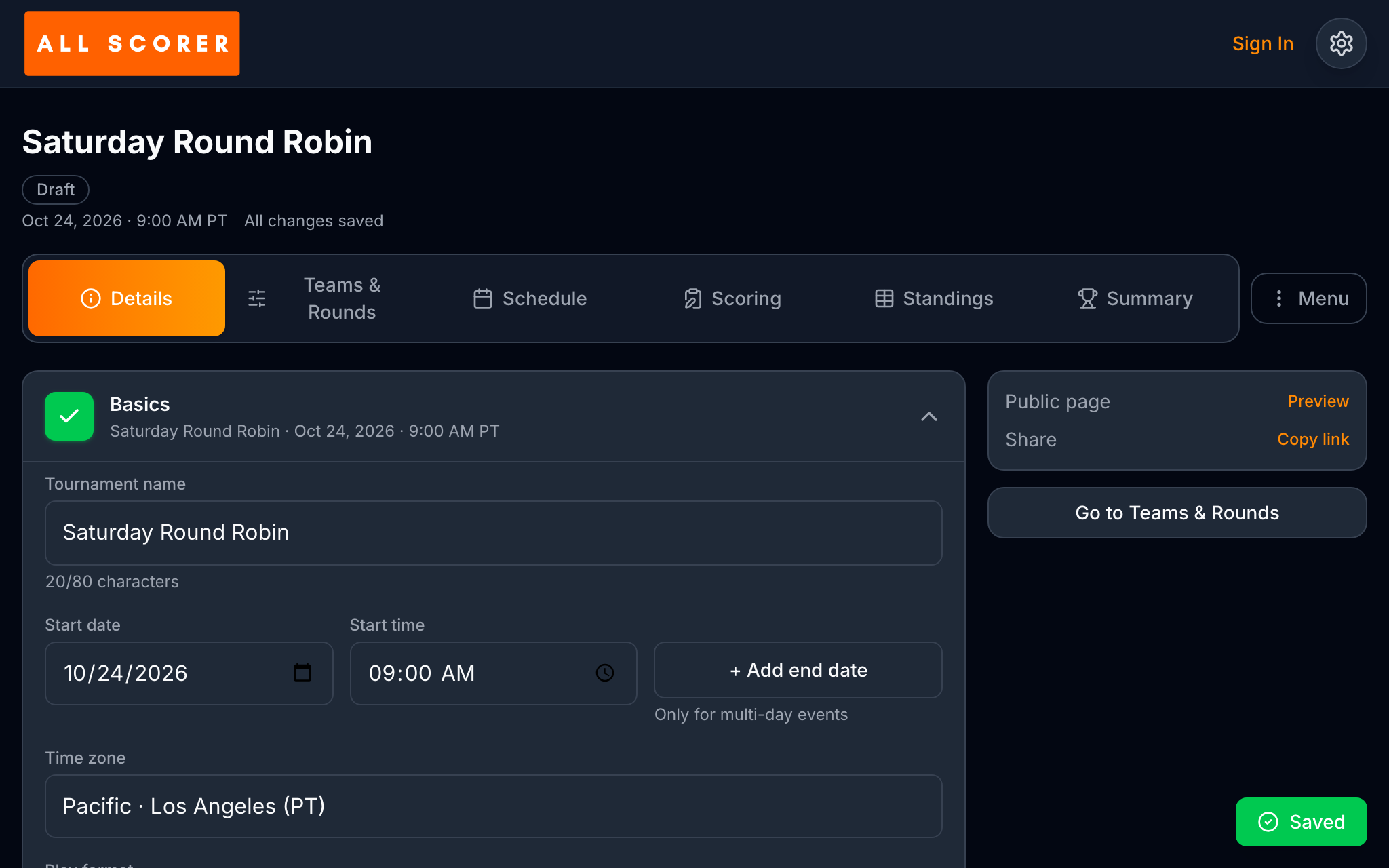
Details holds the event’s name, date, time, time zone, and play format.
More detail
These settings describe your tournament. The example is named Saturday Round Robin, with a start date of October 24, 2026, at 9:00 AM in Pacific time.
Start date, Start time, and Time zone establish when the event starts. + Add end date is available for multi-day events.
For a new tournament, setup stays only in the open browser tab until you select Generate Schedule. Keep that tab open while you finish setup, even if the Details screen shows “All changes saved.”
2. Teams and players
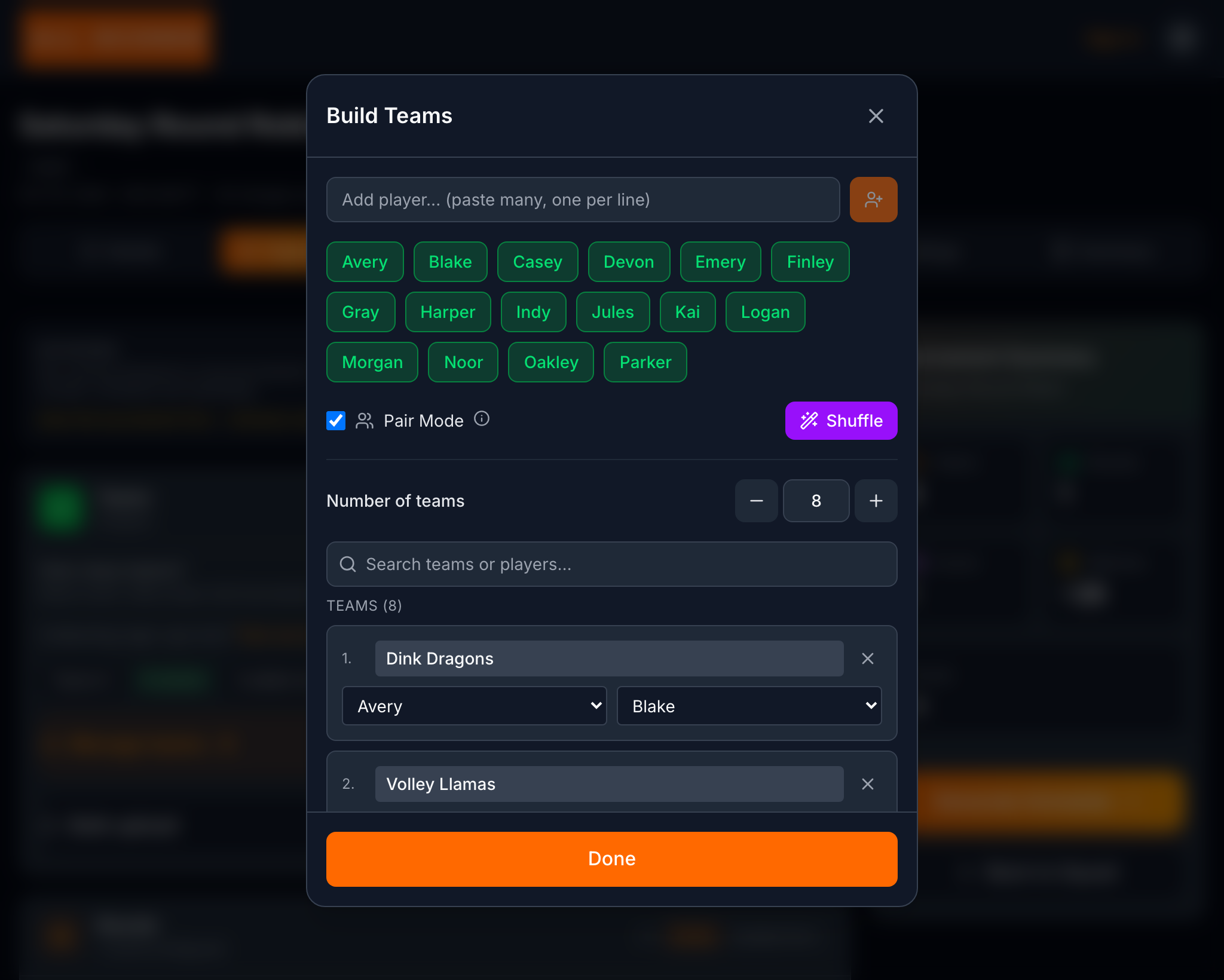
Build Teams brings player names and team assignments together, with Pair Mode and Shuffle available for creating pairs.
More detail
How many teams? sets the number of team slots, and Manage teams opens this window. A team counts as entered once it has a player, so the number of slots and entered teams can differ.
You can paste player names into the Add player field, one per line. The example shows 16 players and eight team slots. Team cards contain an editable team name and player selections, such as Avery and Blake on Dink Dragons.
Shuffle randomly pairs the selected players. Those teams stay fixed for every match. Done finishes your work in the window.
3. Rounds and scoring rules
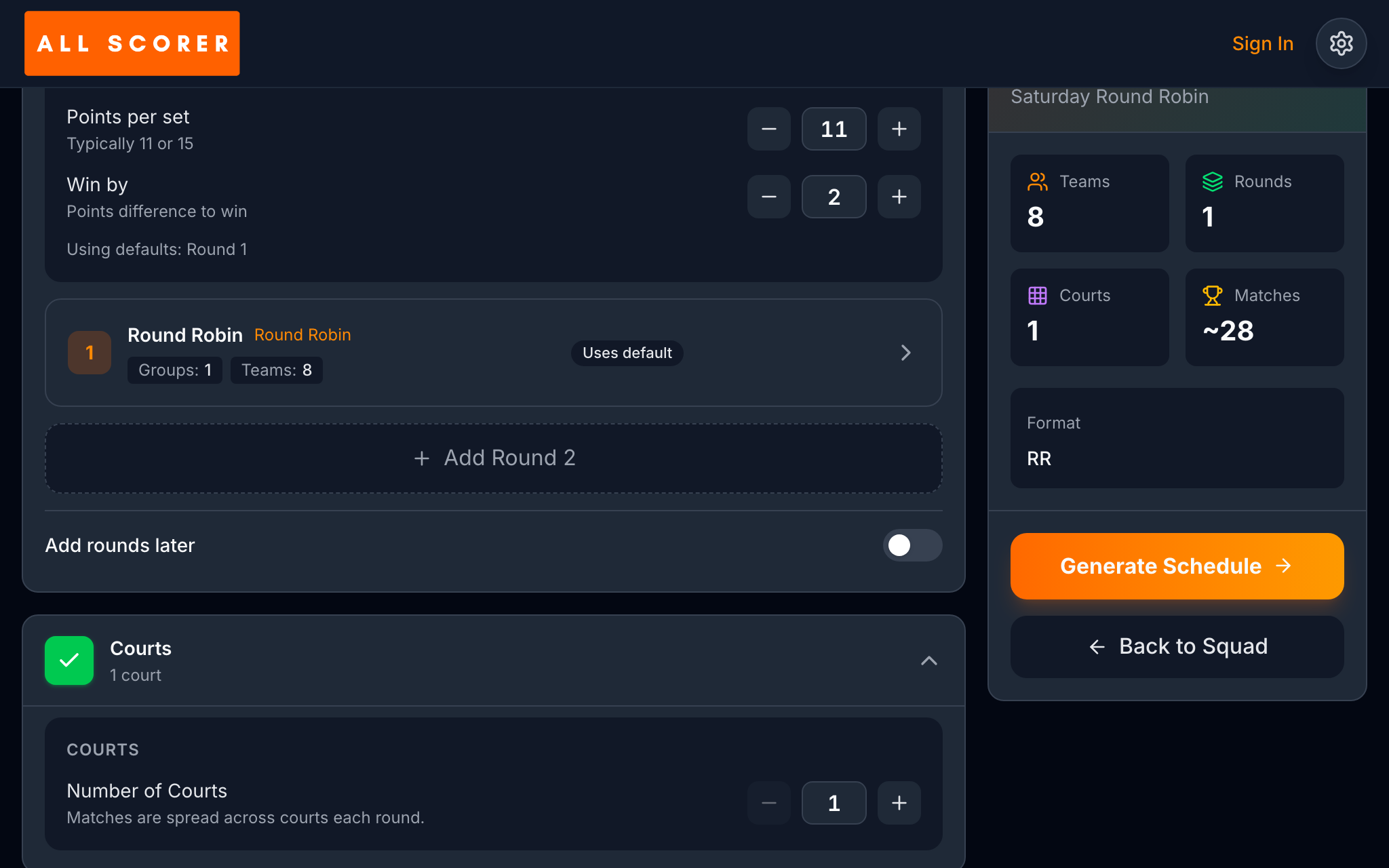
Round Robin gives every team one match against every other team; Points per set and Win by define the scoring target.
More detail
A new tournament starts with one Round Robin round. With eight teams in one group, each team plays seven opponents, producing 28 matches in total.
The default scoring is one set to 11 points, with a two-point margin required to win. Sets per game, Points per set, and Win by let you change those settings. The round’s Uses default label shows that it uses the default scoring settings.
The numbered round is a tournament stage, which can contain many matches. This example needs one round robin stage; Add Round 2 is available for adding another round.
4. Courts
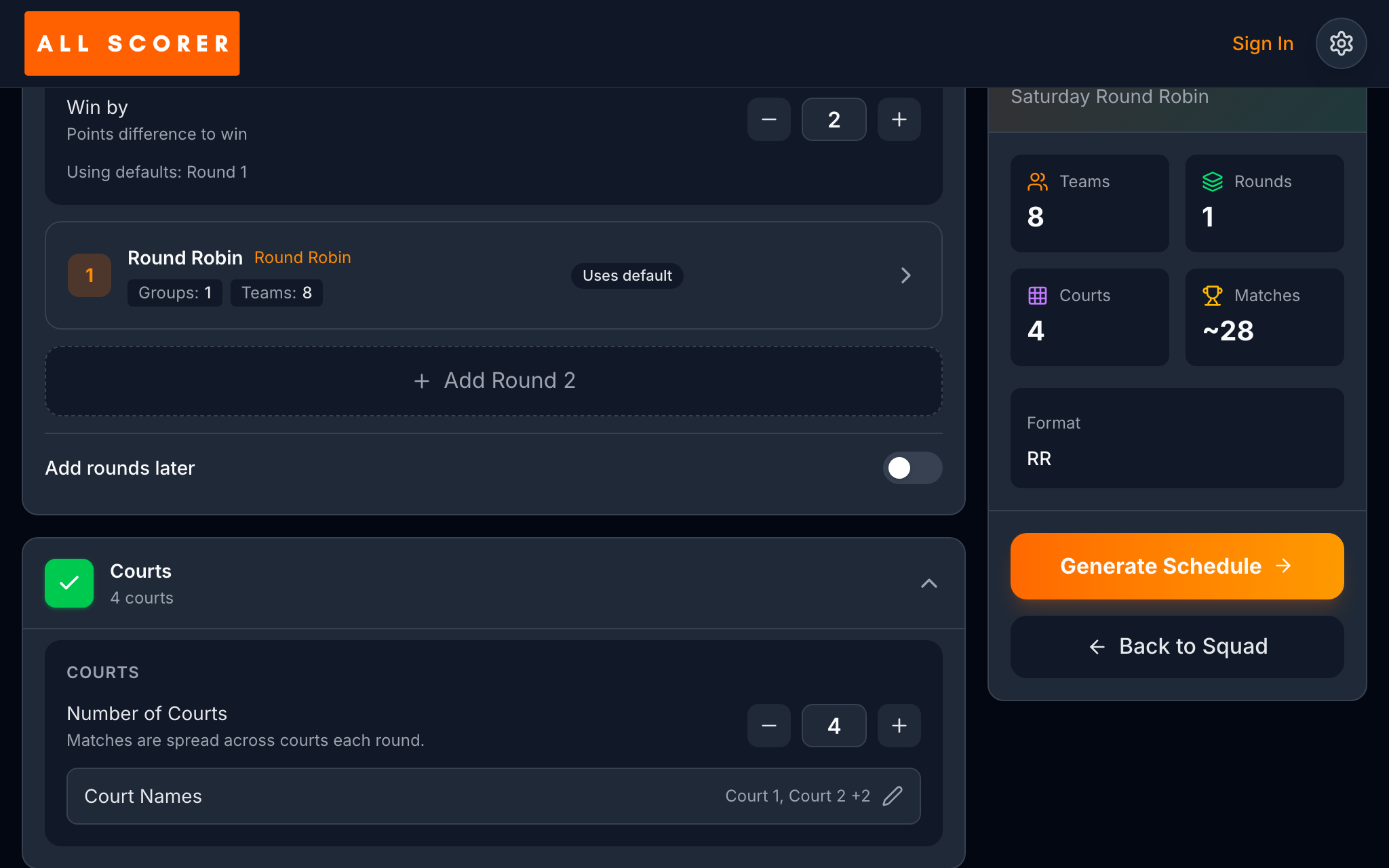
Number of Courts sets how many matches can run at once, and Court Names lets you name the courts.
More detail
Court count affects how the matches fit into the schedule. The example has four courts, so up to four matches can take place at once.
Eight teams produce 28 round robin matches: 8 × 7 ÷ 2. Four courts need at least seven time slots; two courts need at least 14. Changing the court count changes the available capacity, while the number of matchups stays the same.
Court Names lets you replace the default names with names used at your venue. The summary at the right shows the court count alongside teams, rounds, and estimated matches.
5. Generated schedule
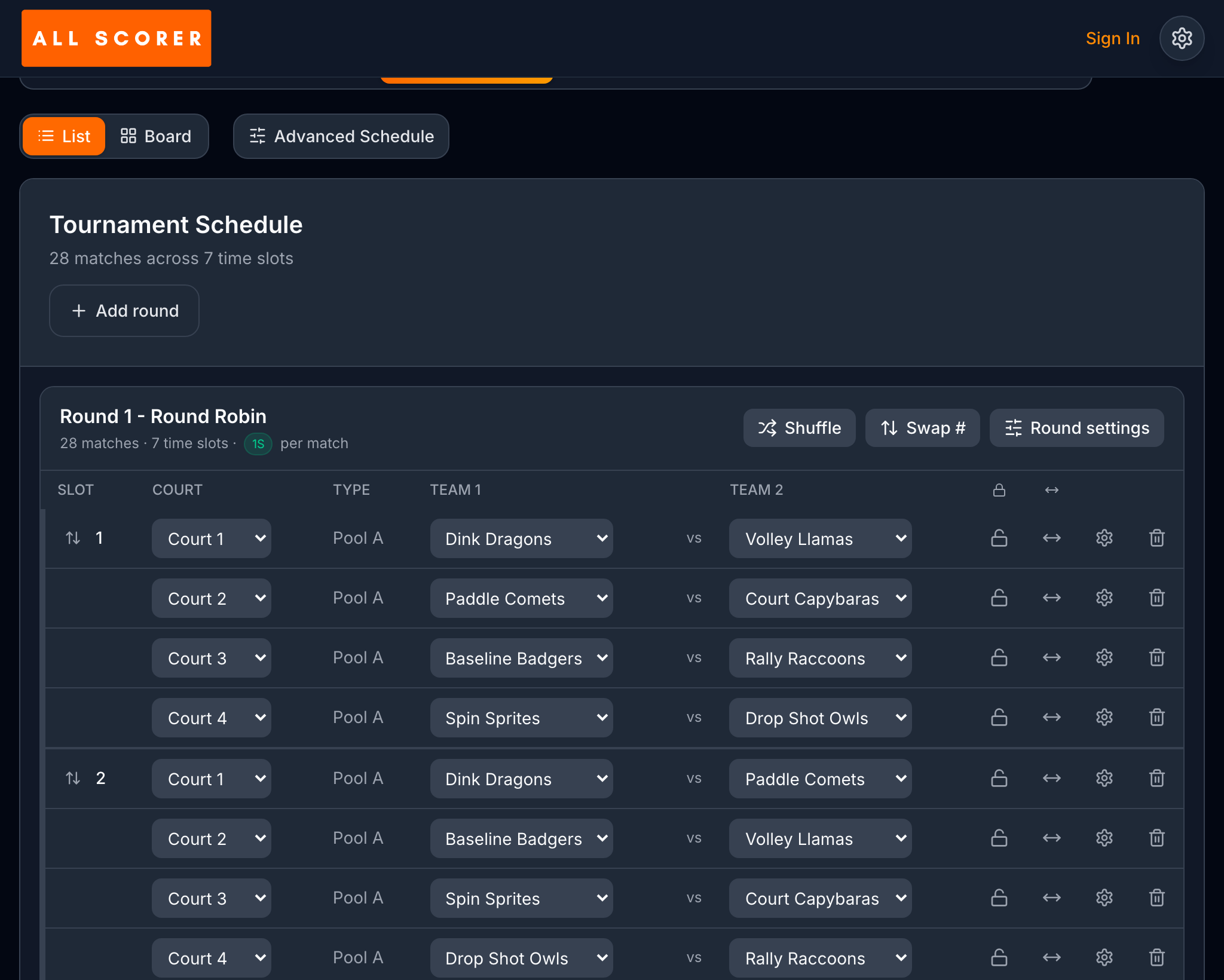
Tournament Schedule shows the generated matchups and court assignments, with List and Board offering two views of the schedule.
More detail
Generate Schedule creates the schedule and saves a new event. In this example, the result is 28 matches across seven time slots.
In List, each match appears with its slot, court, and two teams. The first slot puts Dink Dragons against Volley Llamas on Court 1, with three other matches assigned to Courts 2, 3, and 4.
A time slot groups matches that can run at the same time. If your schedule has more slots than this example, check the team count and available courts. Board provides another view of the same schedule.
6. Scoring
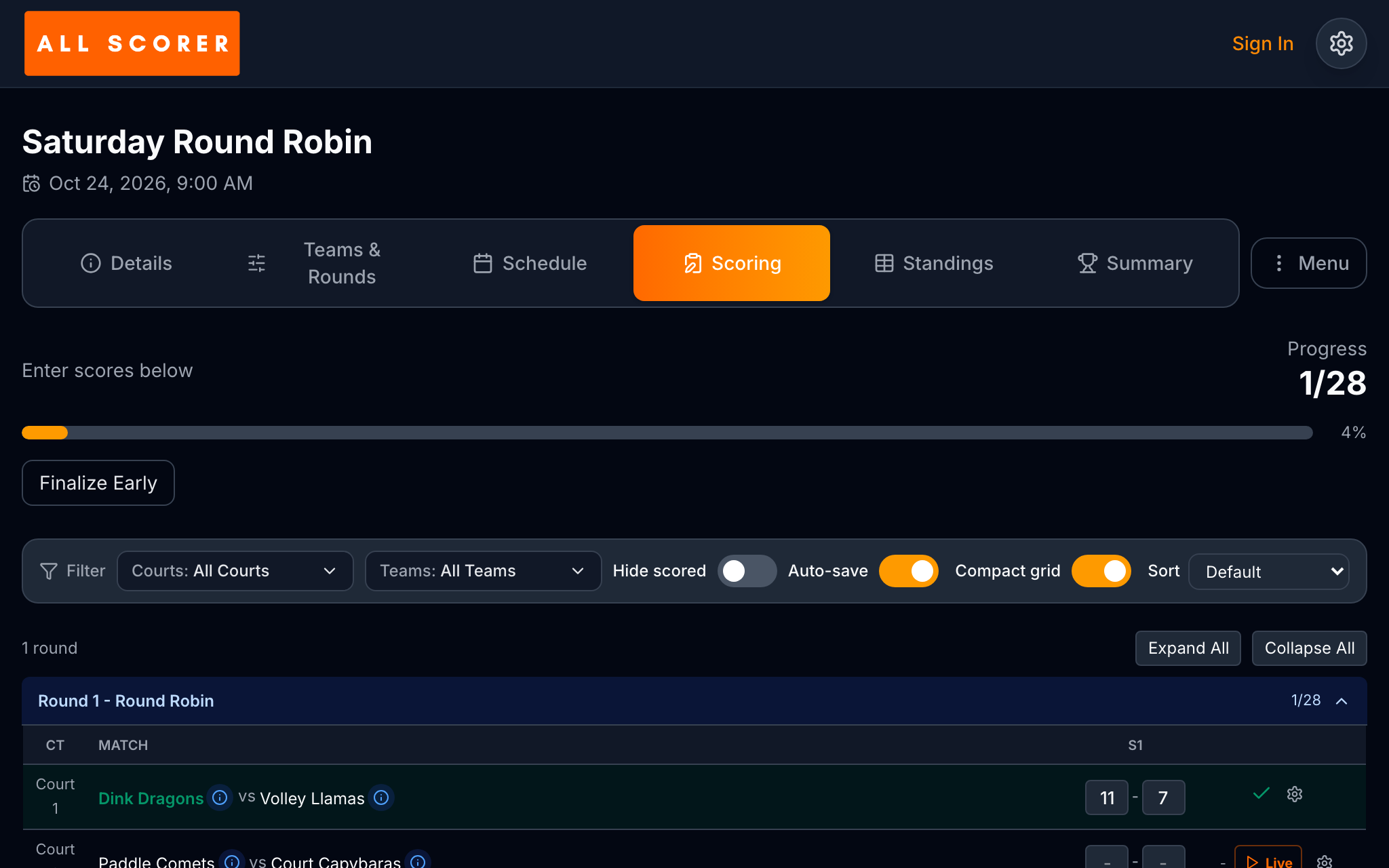
Scoring accepts match results, while Auto-save saves a score when you leave its field and Progress counts saved matches.
More detail
Auto-save is on by default. After entering a score, leave the score field, for example by pressing Tab. A check mark appears when the score has saved.
The example shows Dink Dragons beating Volley Llamas 11–7. That saved result brings Progress to 1/28. If progress has not changed after typing a result, leave the score field and check for the saved check mark.
Courts and Teams filter the matches shown, while Hide scored helps you focus on matches still awaiting results. Live opens live scoring for an individual match.
7. Standings
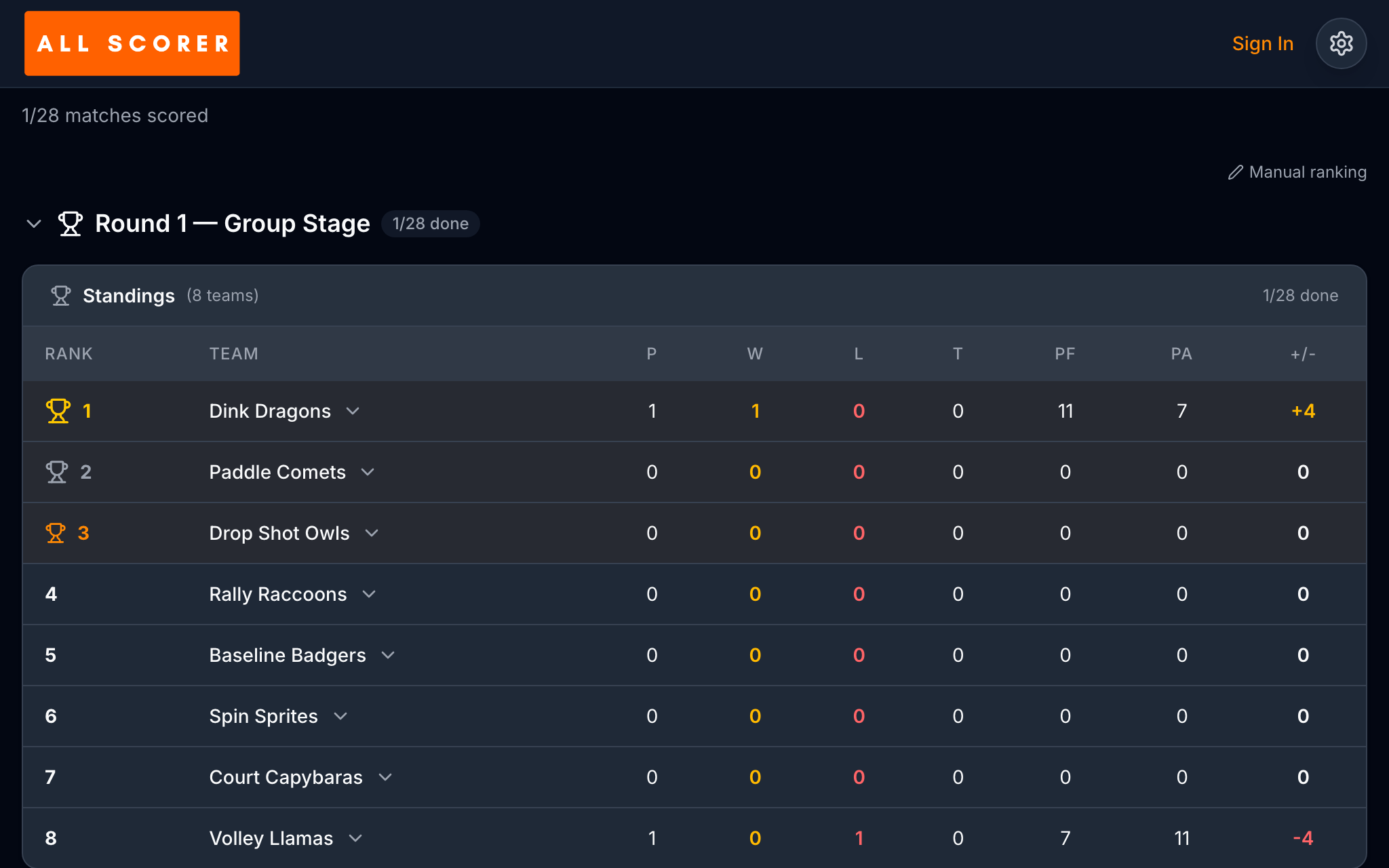
Standings updates from saved results, showing each team’s record, points, and current rank.
More detail
The table reflects the results saved so far. Here, only one of 28 matches has been scored, so these are early standings.
Dink Dragons has one win, 11 points for, seven points against, and a +4 point difference. Volley Llamas has one loss and a −4 difference. The other six teams have no saved results yet.
If a result is missing from the standings, check that it has saved in Scoring. Typing into a score field with Auto-save on saves the score when you leave that field.
8. Spectator page
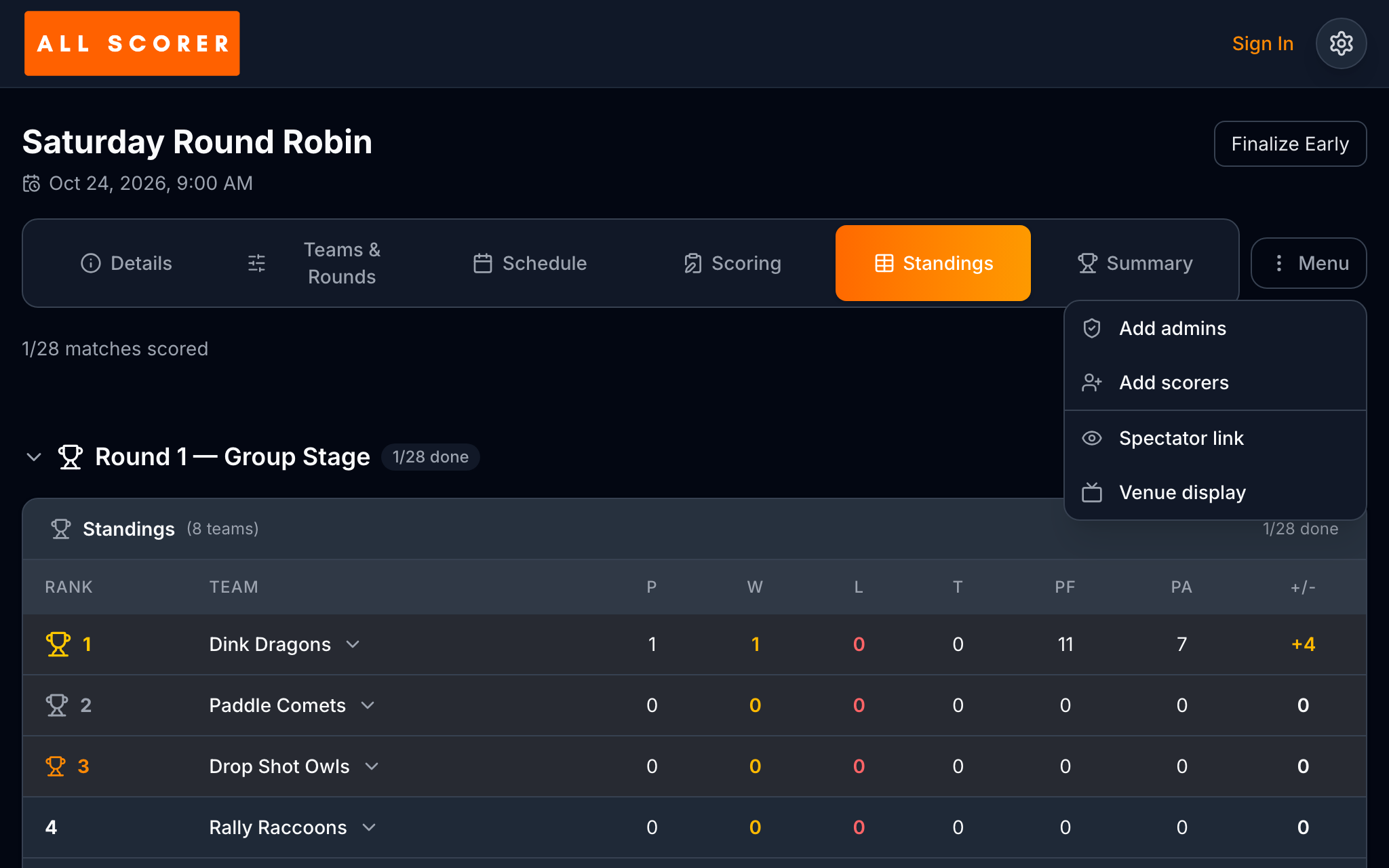
Menu → Spectator link opens a read-only page where players and guests can follow the schedule, scores, and standings.
More detail
Spectator link opens the spectator page in a new tab. It includes Schedule, Scores, and Standings, giving players and guests a place to follow the event.
Share that page’s link with your audience. The spectator page is read-only and has no organizer controls.